
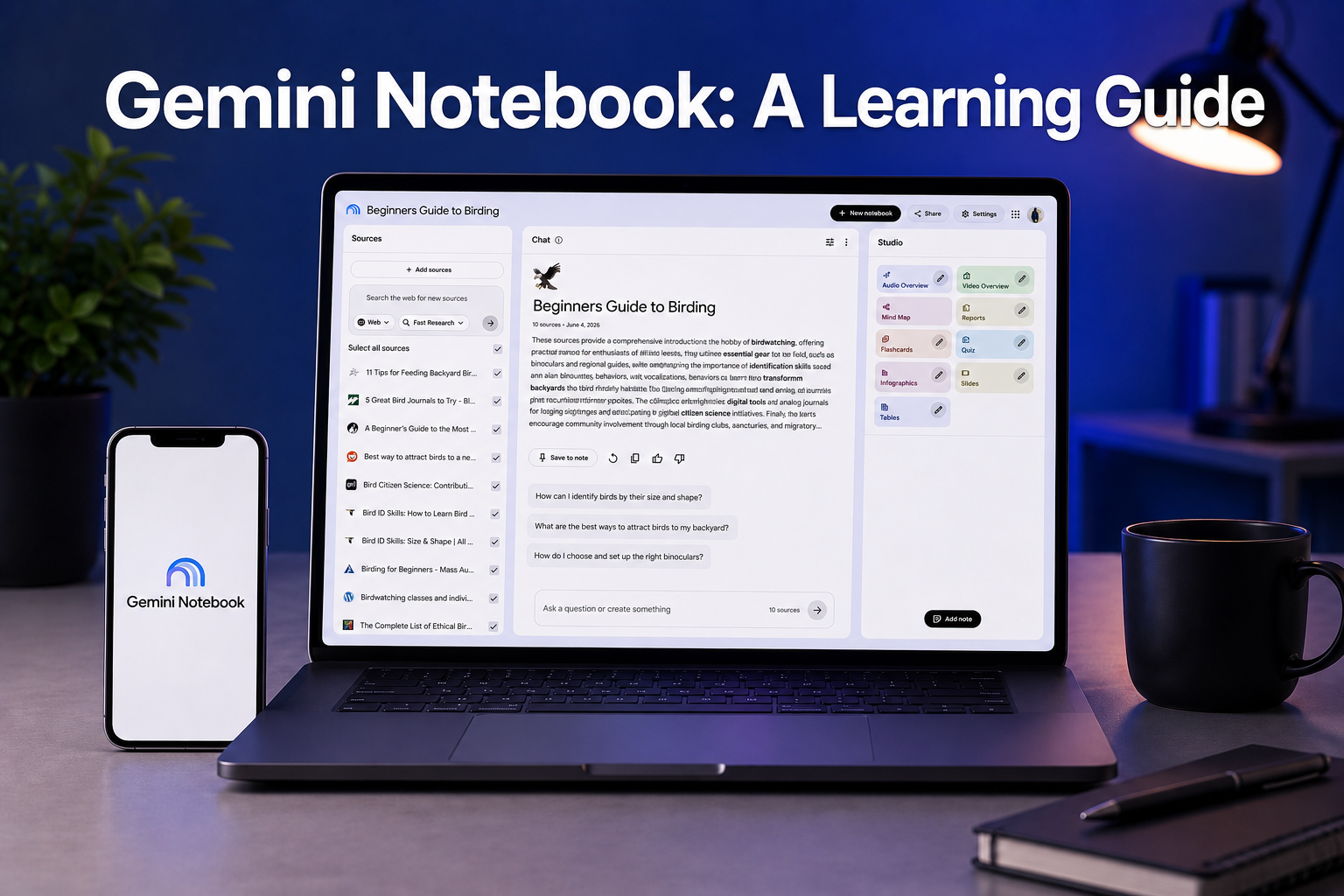
Most people open the tool, upload a PDF, ask one question, and leave. That's a fraction of what it can do. As of July 16, 2026, Google has renamed NotebookLM to Gemini Notebook, the same standalone product, deeper ties to the Gemini app and Search, plus a new code-execution feature. If you've bookmarked it under the old name, nothing about how it works has changed, just the label.
Unlike a general chatbot, Gemini Notebook only answers from the sources you give it, that is your course notes, a tutorial transcript, a certification syllabus, a technical manual. That grounding is what makes it genuinely useful for learning a new digital skill instead of just summarizing one.
Here's how to use every part of it, and how to prompt it so the output is actually worth your time.
Why Gemini Notebook Works Well for Skill-Building
When you're learning something technical, for example, SQL, Excel formulas, or the basics of cloud computing, we all know the hard part usually isn't finding information, it's organizing scattered material into something you can actually study. Gemini Notebook was built for exactly that. You feed it your sources (PDFs, Google Docs, slide decks, web links, even YouTube videos), and it builds everything else, summaries, quizzes, audio explainers — directly from that material, with citations pointing back to the exact passage it used (DigitalOcean).
Getting Your Notebook Set Up
- Create a notebook and add sources. Upload your study material — PDFs, docs, slides, or links. The free tier allows up to 50 sources per notebook, which is plenty for most courses or single-skill deep dives.
- Let it generate a summary automatically. Gemini Notebook scans your sources and gives you an overview the moment you upload them, so you know it's actually read the material.
- Use Deep Research if you're starting from scratch. If you don't have source documents yet, it can build a cited reading list from the open web on its own, which solves the old "blank notebook" problem.
- Access it from the Gemini app too. Notebooks created in the standalone app and the Gemini app now sync automatically, so you can start research in one and pick it up in the other.
The Studio Panel: What Each Feature Actually Does
The Studio panel is where Gemini Notebook turns your sources into study formats. As of mid-2026, it includes:
- Audio Overview – a podcast-style discussion of your material, useful for reviewing while commuting or multitasking.
- Video Overview – narrated slides that pull in diagrams, quotes, and numbers directly from your sources, which is genuinely helpful for visual or process-heavy skills like coding or design.
- Mind Map – a visual breakdown of how concepts in your sources connect, good for seeing the big picture before you dive into details.
- Reports and Briefing Docs – condensed written summaries you can skim before a session.
- Flashcards and Quizzes – built-in study aids with progress tracking, ideal for memorization-heavy topics like terminology or syntax.
- Slide Decks – auto-generated presentations if you need to teach or present what you learned.
- Data Tables – structured extraction when your sources include comparisons, specs, or numbers.
- Code execution (new) – Gemini Notebook can now write and run code against your own uploaded data in a secure cloud environment, so you can get pivot-table-style analysis or statistics without leaving the app. It's rolling out to Google AI Ultra and Workspace business users first, with Pro-tier access expected soon.
You can also generate multiple versions of the same output type in one notebook — for example, a Mind Map per chapter, or Audio Overviews focused on different skill levels (Google — The Keyword).

How to Prompt It Efficiently
Gemini Notebook performs best when your prompts do two things: state your current knowledge level and state your goal.
- Be specific about your starting point. Instead of "explain this," try "I know nothing about this topic — walk me through the basics before getting technical."
- Name your context. If you already have some background, say so: "I understand basic Excel formulas; focus only on pivot tables and explain them like I'm building my first one."
- Ask for a format, not just an answer. "Turn this into five flashcards on key terms" gets a more usable result than a general question.
- Push it to check itself. Ask "What does this source not cover?" to spot gaps in your material before you assume you've learned everything.
- Chain your outputs. Generate a Mind Map first to see the structure, then ask for a Quiz based specifically on the sections you're weakest on.
A Simple Workflow for Learning a New Skill
If you're picking up something like basic data analysis, here's a practical sequence: upload two or three solid resources (a beginner guide, official documentation, one practical tutorial) → generate a Mind Map to see how topics connect → request an Audio Overview for a first pass while commuting → follow up with a Quiz to test retention → ask targeted questions on anything you got wrong. This turns passive reading into an actual study loop.
One Thing to Know Before You Rely On It
Gemini Notebook is free for most use cases, with generous limits on notebooks and daily questions. But daily audio and chat limits do apply, and some features, like fully animated Cinematic Video Overviews and the new code execution tool, these sit behind paid tiers, at least at launch. If you're using it for regular, structured learning, it's worth checking your current plan's limits before building a routine around it (igmguru).
Used this way, Gemini Notebook stops being a summarizer you check once and becomes something closer to a personal tutor, that is one that never makes things up, because it's not allowed to leave your sources.





Comments