

GitHub has transformed the way developers collaborate on projects and manage code. As a platform for version control and collaborative coding, it plays a pivotal role in the software development lifecycle. This post explores the history of GitHub, its benefits, and why every programmer should consider using it.
The History of GitHub
GitHub was founded in 2008 by Tom Preston-Werner, Chris Wanstrath, PJ Hyett, and Scott Chacon. The platform was built on Git, a version control system created by Linus Torvalds in 2005 for managing the Linux kernel’s development. GitHub quickly gained popularity for its user-friendly interface and robust features, allowing developers to share code, track changes, and collaborate more efficiently.
In 2018, Microsoft acquired GitHub for $7.5 billion, further solidifying its position as a leading platform for developers. Today, GitHub hosts millions of repositories and serves as a central hub for open-source projects, personal portfolios, and enterprise solutions.
Why GitHub is Useful
GitHub is a powerful platform that enhances the software development process through robust version control, allowing programmers to track changes in their code over time, revert to previous versions, and manage different branches seamlessly. It facilitates collaboration among multiple developers, enabling them to work on projects simultaneously without overwriting each other's changes, while features like pull requests and code reviews ensure high code quality. As a thriving open-source community, GitHub provides opportunities for programmers to contribute to existing projects, learn from others’ code, and showcase their skills to potential employers, thereby enhancing their professional reputation. Additionally, it offers built-in tools for documentation and project management, such as issues, milestones, and project boards, helping teams organize their work and track progress effectively. With seamless integration into various development tools, CI/CD pipelines, and cloud platforms, GitHub streamlines the entire development process, making it an essential resource for modern programmers. In today’s tech landscape, GitHub has become an industry standard for version control and collaboration, with many companies relying on it for their development processes. Proficiency in GitHub can provide a significant competitive edge in the job market, as employers increasingly seek candidates familiar with this platform. Moreover, a GitHub profile serves as an invaluable portfolio, showcasing projects, contributions, and coding skills to potential employers, which not only demonstrates expertise but also highlights passion for coding. Engaging with the GitHub community can lead to valuable networking opportunities, as contributing to open-source projects enables connections with other developers that may lead to collaboration and job offers. Furthermore, GitHub is a treasure trove for learning and growth, allowing programmers to explore new technologies, coding practices, and frameworks, thus contributing to their self-improvement and enhancing their skill sets.
How to Set Up Your GitHub Account and Connect It to Your Code Editor
In this guide, we’ll walk you through setting up your GitHub account and connecting it to popular code editors like Visual Studio Code.
Create a GitHub Account
Go to Github
Sign Up: Click on the “Sign up” button.
Fill out your details, including your email address, password, and username.
Verify Your Account by following the instructions sent to your email to verify your account.
Complete Your Profile Once logged in, customize your profile with a profile picture and bio to make your account more personal.
Install Git
Download Git: Go to git-scm and download the latest version for your operating system.
Install Git: Follow the installation instructions for your platform. On Windows, you may want to choose the option to use Git from the Windows Command Prompt.
Configure Git
Open Terminal/Command Prompt: Access the command line interface on your system.
Set Your Username: Run the following command, replacing "Your Name" with your actual name:
git config --global user.name "Your Name" |
Set Your Email: Use the command below, replacing youremail@example.com with the email linked to your GitHub account:
git config --global user.email "youremail@example.com" |
Connect GitHub to Visual Studio Code
Install Visual Studio Code: Download and install Visual Studio Code if you haven't already. code.visualstudio
Open Visual Studio Code.
Open the Integrated Terminal: You can do this by navigating to View > Terminal.
Clone a Repository: To clone a GitHub repository, use the following command:
git clone https://github.com/codedevpay/first_repo.git |
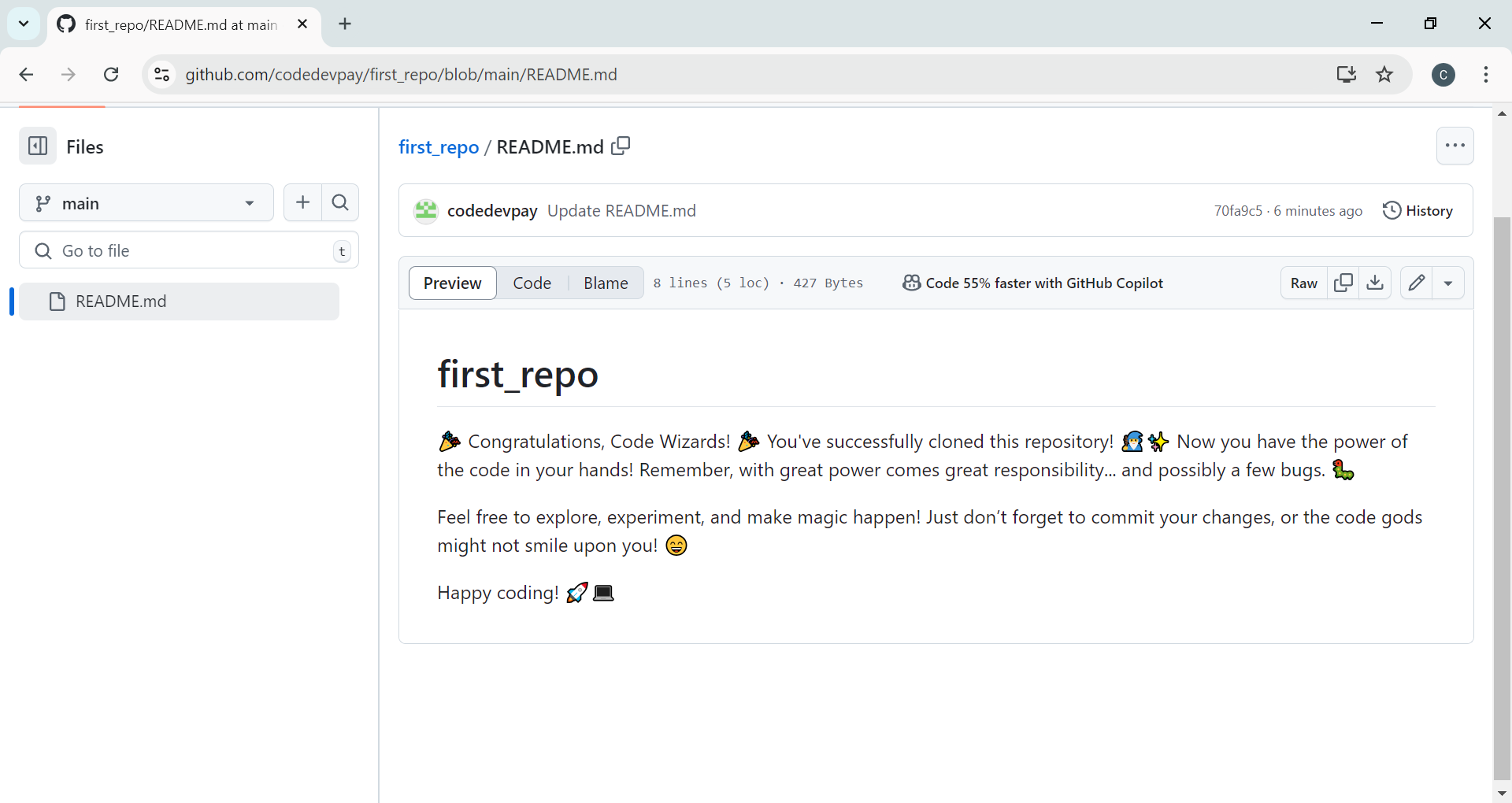
Sign In to GitHub: In Visual Studio Code, you might be prompted to sign in to GitHub. Follow the prompts to authenticate your GitHub account.
Install GitHub Extension (Optional): To enhance your experience, consider installing the GitHub Pull Requests and Issues extension from the VS Code marketplace.
Create or edit files in your cloned repository.
Start Coding!
cd path/to/your/project
The command shows how you tell your computer to go to the folder where your project is located.
cd path/to/your/project |
Then initialize a new Git repository
git init |
Add Your Files
Add files to your staging area:
Use the terminal to stage changes with:
git add . |
Commit your changes
git commit -m "Your commit message" |
Connect to a Remote Repository
If you haven’t created a remote repository yet, go to GitHub (or another platform) and create a new repository. Then connect your local repository to it:
git remote add origin https://github.com/username/repository.git |
Push your changes back to GitHub
git push -u origin main |
Verify Your Push
You can go to your GitHub repository in a web browser to ensure your files have been uploaded successfully.
Conclusion
Setting up a GitHub account and connecting it to your code editor is a straightforward process
that empowers you to manage your projects efficiently. With these steps,
you’re ready to collaborate with others and contribute to open-source projects!




Blessing
Sep 24, 2025 • 12:50 AM